Phone gradients
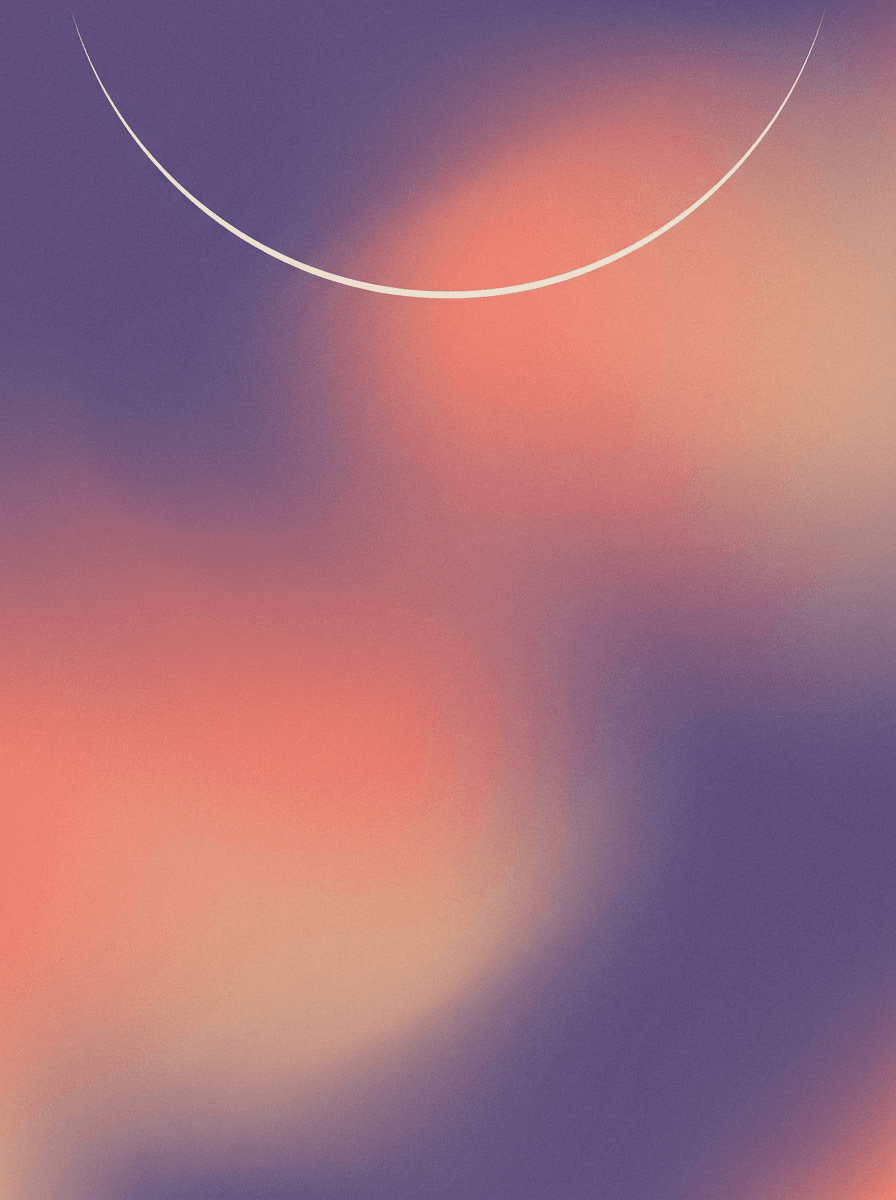
“Generate a 9:16 phone wallpaper: smooth flowing gradient of dusk purple, coral, and soft peach with gentle grain, calm minimal composition, clear space in the center for icons.”
Use this promptDescribe the scene, style, and mood, pick 9:16 for a phone or 16:9 for a desktop, and Made generates the wallpaper as a PNG. Gradients, landscapes, dark minimal, illustration — whatever you can describe.
Runs in the tool. You sign in to run it, see the price before you start, and failed runs are refunded.
Name the scene or pattern, the palette, and the mood. For phone wallpapers, ask for an uncluttered center so icons stay legible.
Choose 9:16 for phone screens or 16:9 for desktops; other ratios are available for tablets and unusual displays.
Each run is a new render — generate a few takes and keep the one that works at a glance, since wallpapers are seen small and often.
Save the PNG, send it to your device, and set it as your wallpaper from your system settings.
Real results from Made. Use a prompt to open it in Wallpaper Generator, then press Generate.
“Generate a 9:16 phone wallpaper: smooth flowing gradient of dusk purple, coral, and soft peach with gentle grain, calm minimal composition, clear space in the center for icons.”
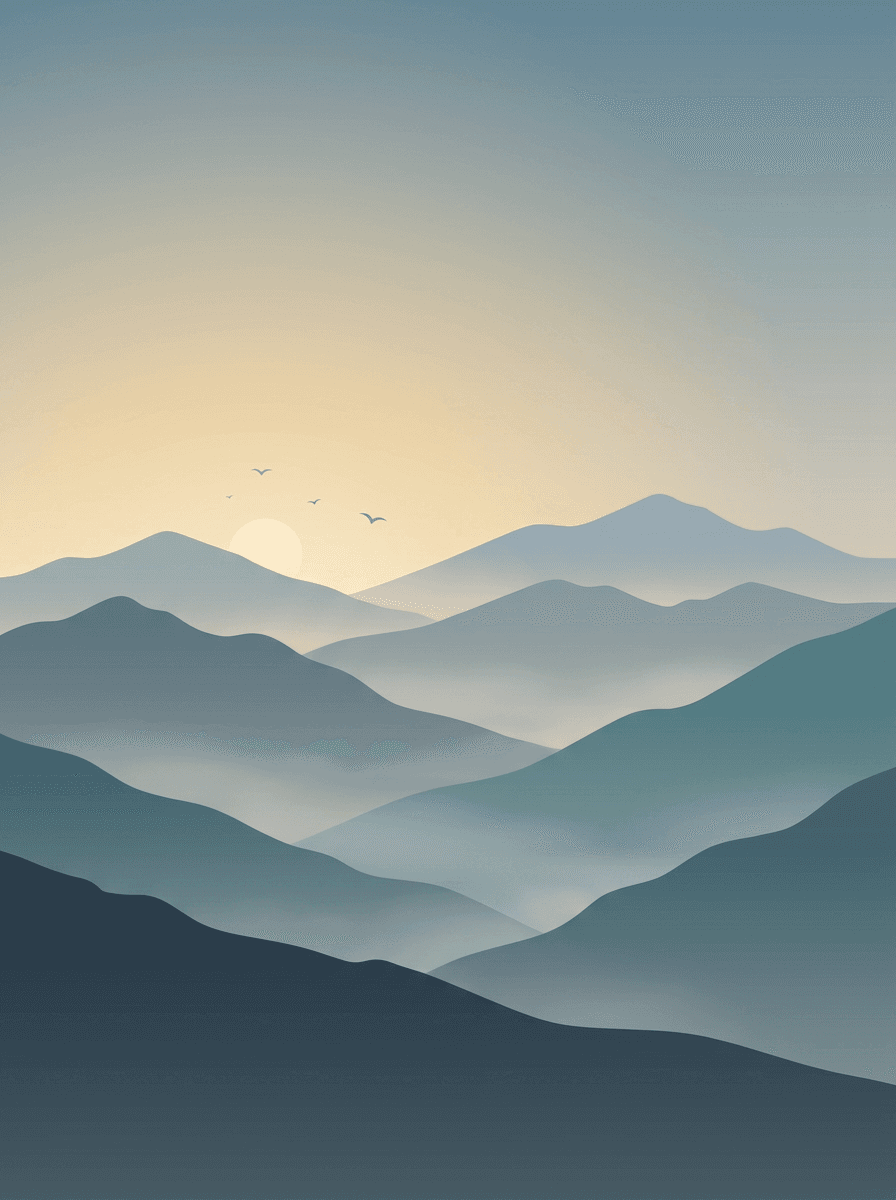
Use this prompt“Create a 16:9 desktop wallpaper: misty mountain ridgelines at sunrise in layered silhouettes, soft gradient sky from pale gold to muted blue, minimal flat illustration style.”
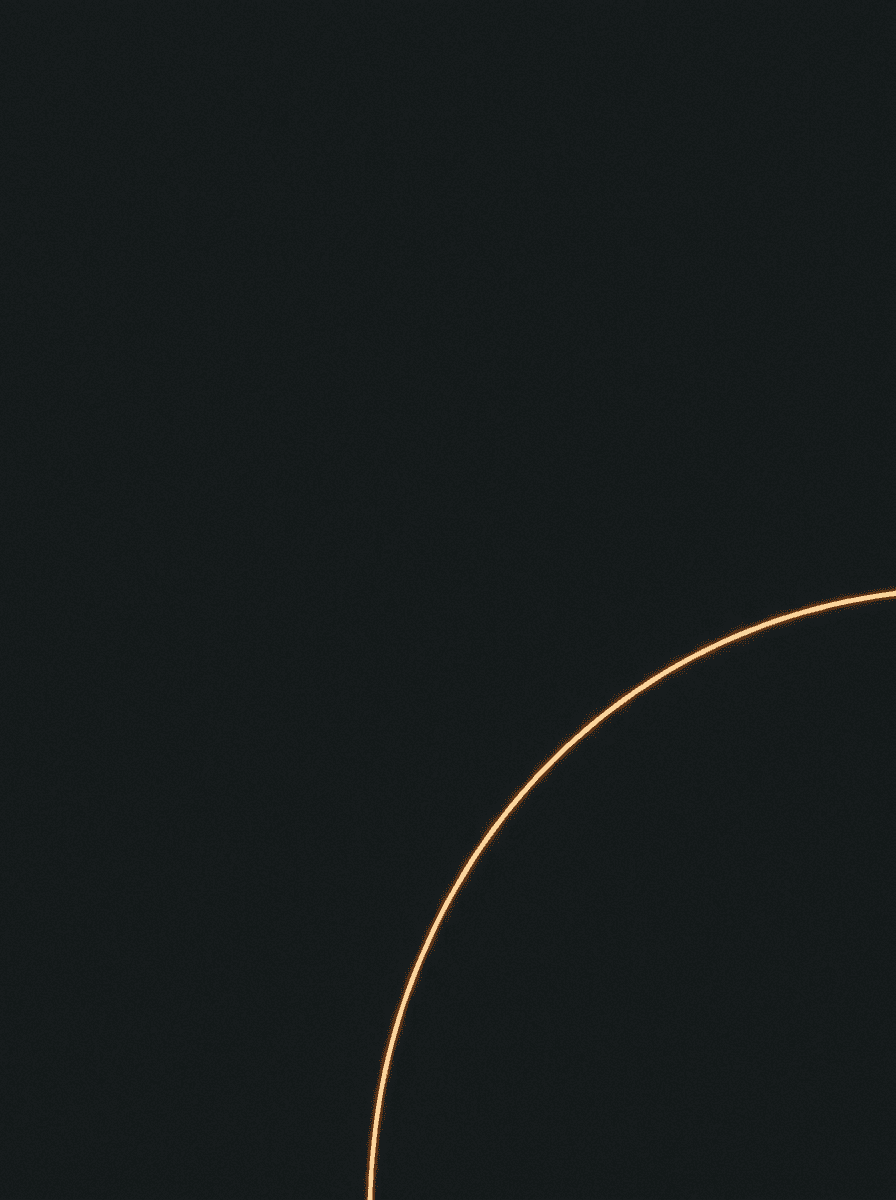
Use this prompt“Make a dark minimal wallpaper: near-black charcoal background with a single thin arc of warm amber light in the lower right, ultra-clean composition, deep blacks, faint grain.”
Use this promptChecked against the running tool on 2026-10-20.
You describe the wallpaper — scene, palette, mood — and pick an orientation, and Made sends the description to GPT Image 2.5 Flare, which renders it and returns a PNG, at 2K for 9:16 and 16:9. Every run is a new render, so generate a few options and keep the best.
9:16 matches modern phone screens for both lock and home screens. Most phones crop or scale a 9:16 image cleanly when you set it as wallpaper; if your device is picky about exact pixels, crop the result with Image Resizer first.
For most phone screens, yes — 9:16 and 16:9 wallpapers come out at 2K, and the OS scales them cleanly. For large or high-DPI desktop monitors where you notice softness, run the wallpaper through Image Upscaler before setting it.
Yes — run the same description twice, once at 9:16 and once at 16:9. Because each generation is a new render, the pair will share the style and palette rather than being pixel-identical crops of one image; keep the description specific to make the set feel cohesive.
Not on this page — this workflow generates from text only. To restyle or clean up a photo you already have for wallpaper use, upload it to the AI Photo Editor, then crop it to your screen ratio with Image Resizer.
Composition instructions matter as much as the subject. Name the scene and palette, then add practical cues: “uncluttered center” keeps icons readable on a phone, “deep blacks” suits OLED screens, and “minimal, low contrast” keeps a desktop background from competing with your windows.
A PNG, at 2K for 9:16 and 16:9. PNG is accepted by every phone and desktop OS as a wallpaper source, and you can convert or compress it afterwards with Image Compressor if you want a smaller file to sync across devices.


 Core
Core

See what each one makes, then open it in Made.