The workflow
Start from a design that is easy to copy
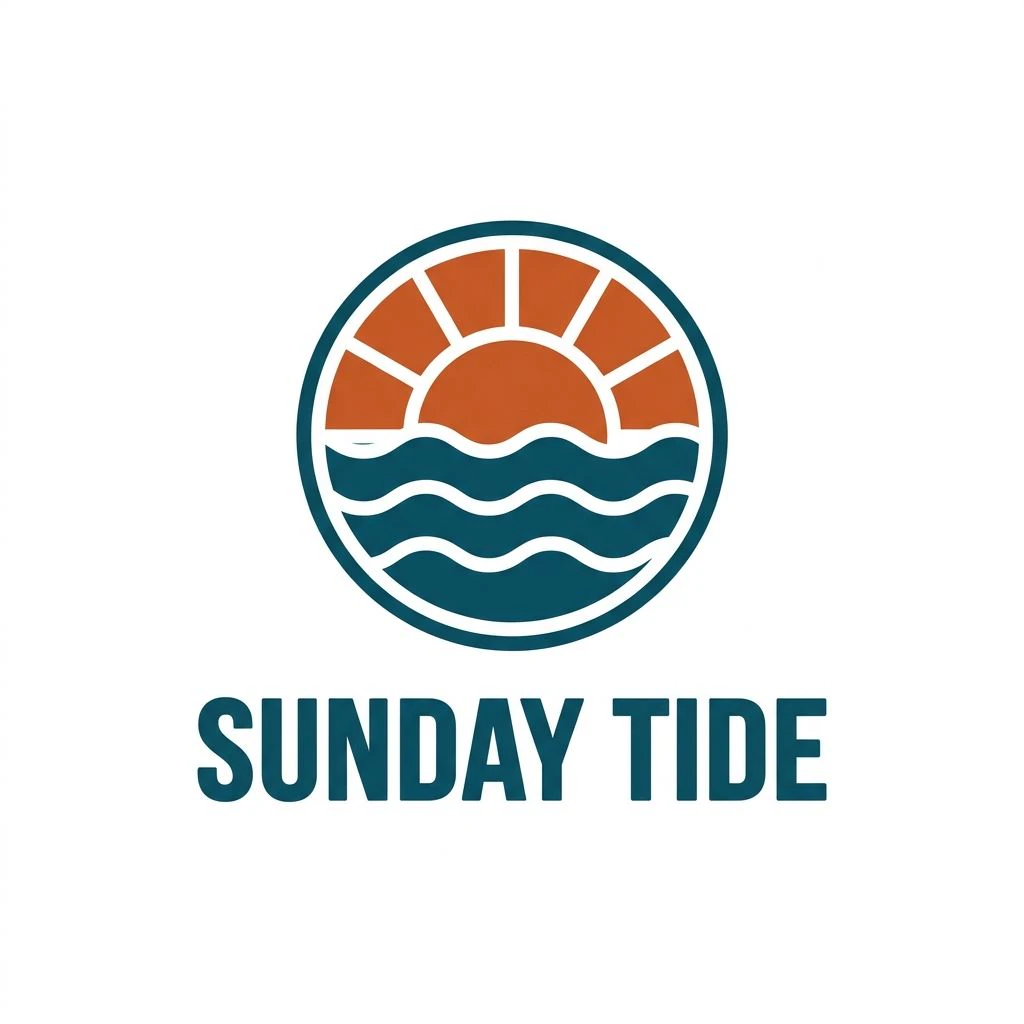
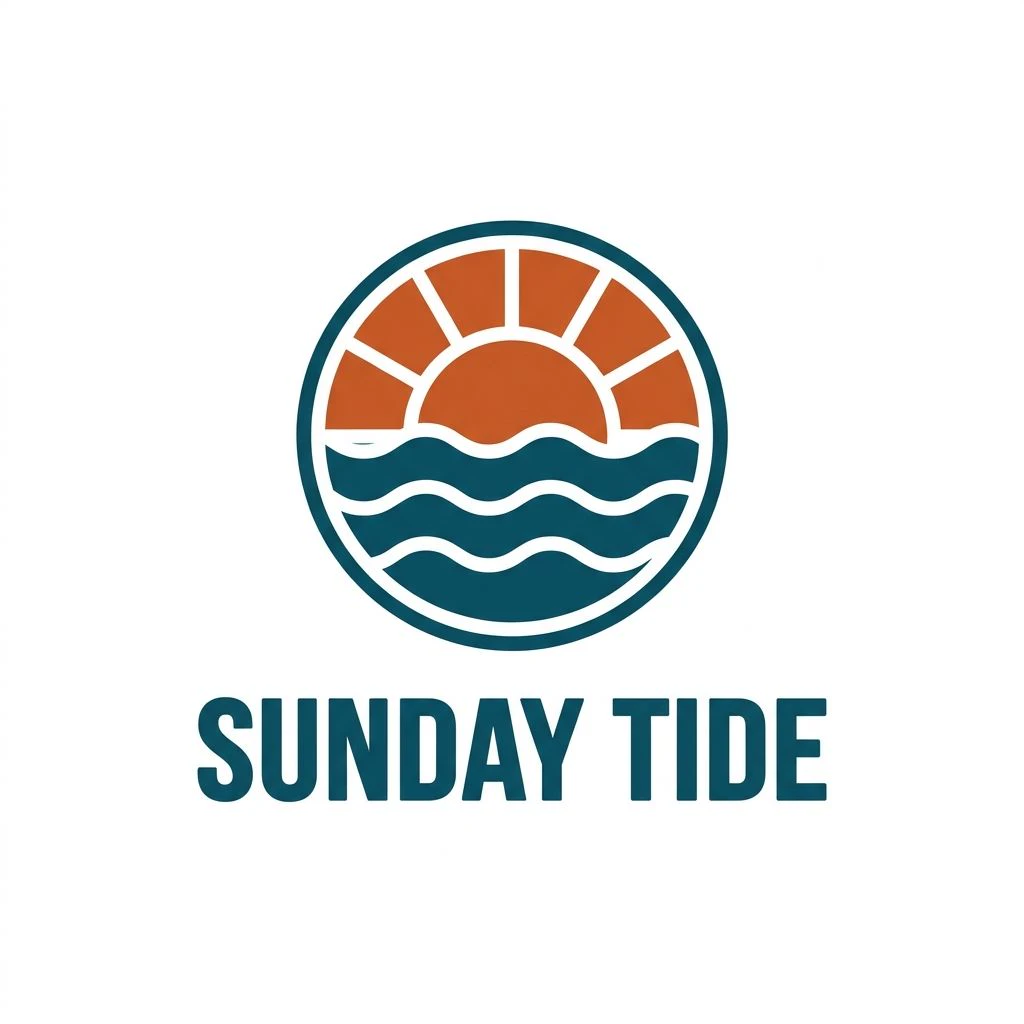
A bold, flat design with short lettering, alone on a plain background with space around it, comes through best. Put the whole design in the image. The example’s design was made in the AI Image Generator with Nano Banana Pro, the model it opens on, and it is a made-up badge with no real brand. A screenshot with buttons or a busy background around the artwork is harder for the tool to isolate.
Upload the design image
Open the AI Mockup Generator and tap “Upload image” under Photo, or paste an image from your clipboard. It takes JPG, PNG or WebP up to 20 MB, one image per run. An image bigger than 1,536 pixels on its long side is scaled down before it uploads. The mockup comes back in the shape of your image, so a square design gives a square mockup.
Name the product, the scene and what must not change
Under Prompt, say what the design goes on and how it is shown: “a plain white cotton t-shirt laid flat on a light oak floor, photographed from above”. Then say what must stay: the shapes, the colors, the lettering spelled out letter by letter, and “do not redraw or add anything”. Prompt is optional; left empty, the tool runs its first idea, “Put this design on the chest of a heavyweight off-white cotton t-shirt worn by an adult model outdoors in soft natural daylight. Keep the artwork shapes, colors, and lettering clean and intact, leaving out the white background.” Apparel mockup, Packaging box and Coffee cup under Try fill in other ideas.
Tap Generate
Generate shows the price before anything runs. If you aren’t signed in, you sign in first and your image and prompt wait for you. The mockup appears at the top of your Generations, and in the example it took about two minutes.
Check it against your original, detail by detail
Open the mockup at full size and put your original next to it. Read every letter. Count the shapes: rays, stripes, dots, petals. Compare the colors, the thickness of lines and the edges. If a detail changed, say it in the prompt and generate again from your original. When a printer needs the exact artwork, send your own file: the mockup is for showing the product, not for printing.
Recorded Made demonstration
A made-up “Sunday Tide” badge, on a t-shirt, checked against the original
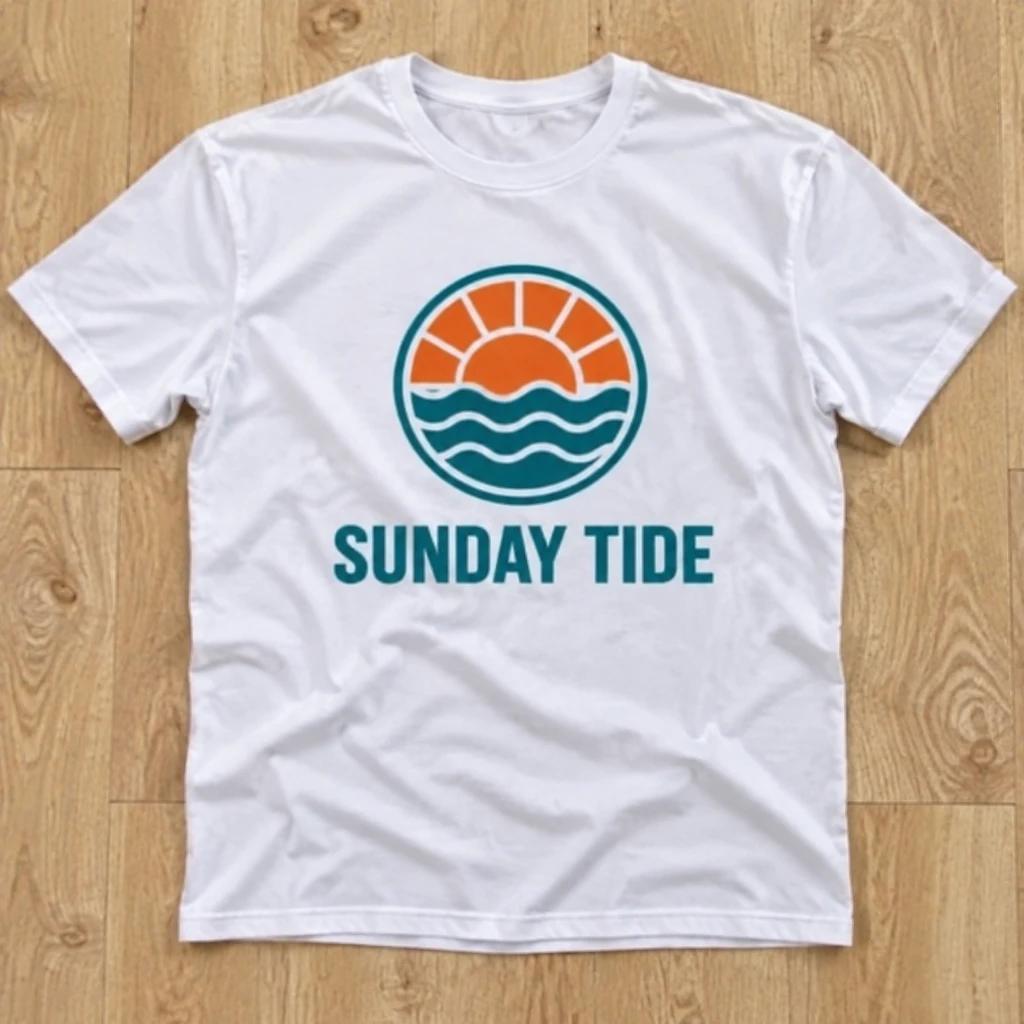
These are real AI Mockup Generator runs from November 19, 2026. The design is a badge Made generated for this guide with Nano Banana Pro: a half sun over three bands of water in teal and orange, with the name SUNDAY TIDE beneath it. It is made up, with no real brand and no one in it. It went in as it is, with the prompt shown below, and the request is what the tool builds for that image and those words, sent through Made’s API from a script rather than tapped through the browser. On the t-shirt the name is spelled as typed, and the badge keeps its ring, its six sun wedges and its three bands of water. The white background around the design is gone. It is not pixel-exact: the orange came out brighter (the sun averages #DB5F20 where the design has #C45927), the teal a little lighter (#045D6C where the design has #084F61), and the print is softer at the edges than your file. The tool redrew the design inside a new picture, so this is not a print file. Two runs, not a measure of how often a design holds.
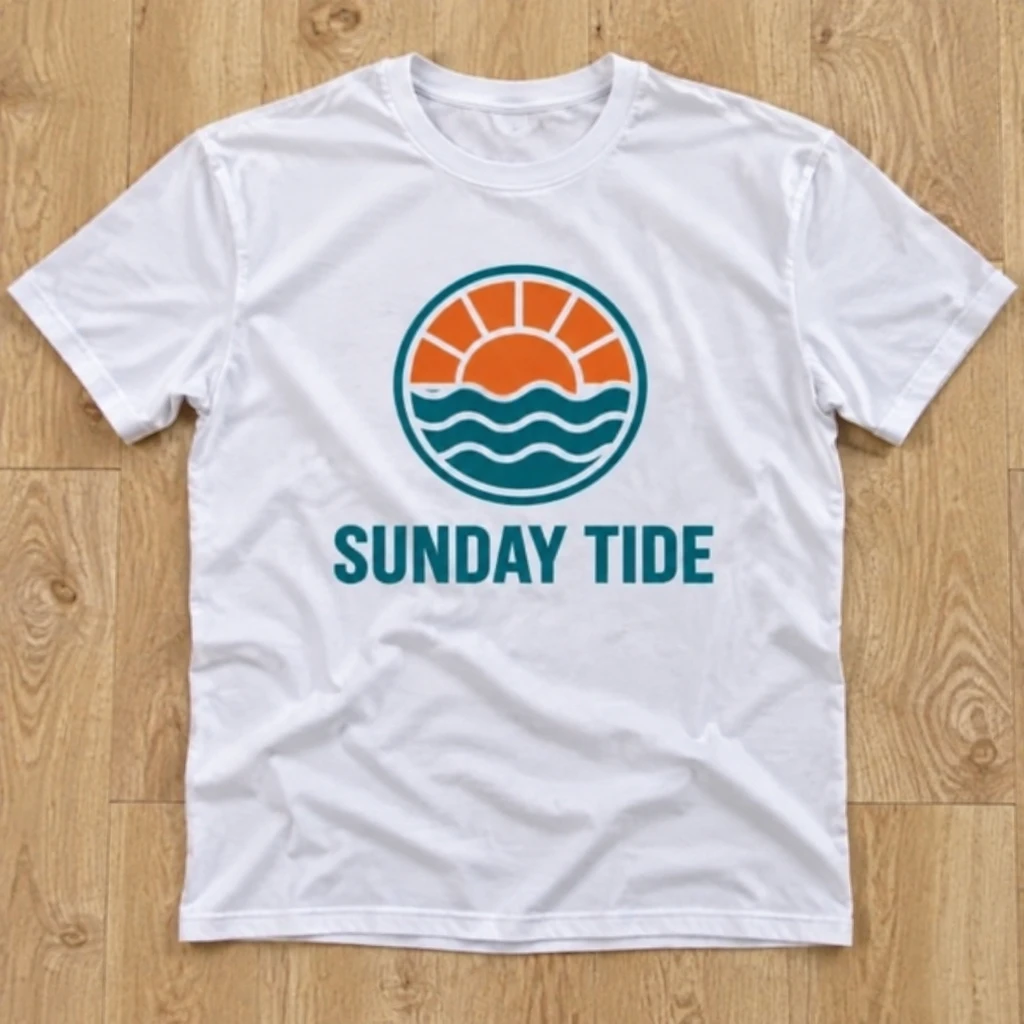
GPT Image 2.5 Flare (AI Mockup Generator) · Generated · View the example record and price basis (JSON)
Do it again: more products, more colors
The AI Mockup Generator takes one design image and makes one mockup per run, so a set of mockups is one run per product. Add the same design file each time and change only the product words, so the sentences that protect the design stay the same.
The same design on another product
Upload the same design again and change only the product and the scene: a hoodie, a tote bag, a mug, a box. Keep the lines that say what must not change. The tool’s own page shows real examples of an apparel mockup, a packaging box, a coffee cup and a city billboard. Flat and gently curved surfaces are the most faithful; a curved one like a mug is harder, and this guide did not test one.
The same product in another color
Change only the color word: “a plain charcoal hoodie” for “a plain white cotton t-shirt”. Each run draws the design again, so check every color on its own: a design that holds on white can change on a dark garment. In the example, the white lines of the badge came out light gray on charcoal.
Someone wearing it
Describe the person and the place, like “worn by a runner stretching outdoors”. People in these mockups are generated, not real customers, so don’t present them as buyers. The tool’s own first idea shows a person wearing the shirt.
Recorded Made demonstration
The same design on a charcoal hoodie
This is the second real run, from the same day, on the same design file, with the same sentences and only the product changed to a charcoal hoodie. The name is spelled as typed and the badge has its six sun wedges and three bands of water again. What changed: the white lines and gaps came out light gray, the outer ring is thicker with only a thin gap inside it, and the orange is more muted than on the shirt. The hoodie, its drawstrings and its pocket are drawn fresh, so it is not a photo of a real garment. It is one more run, not a measure of how often a second product holds.
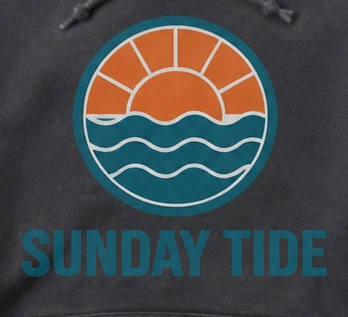
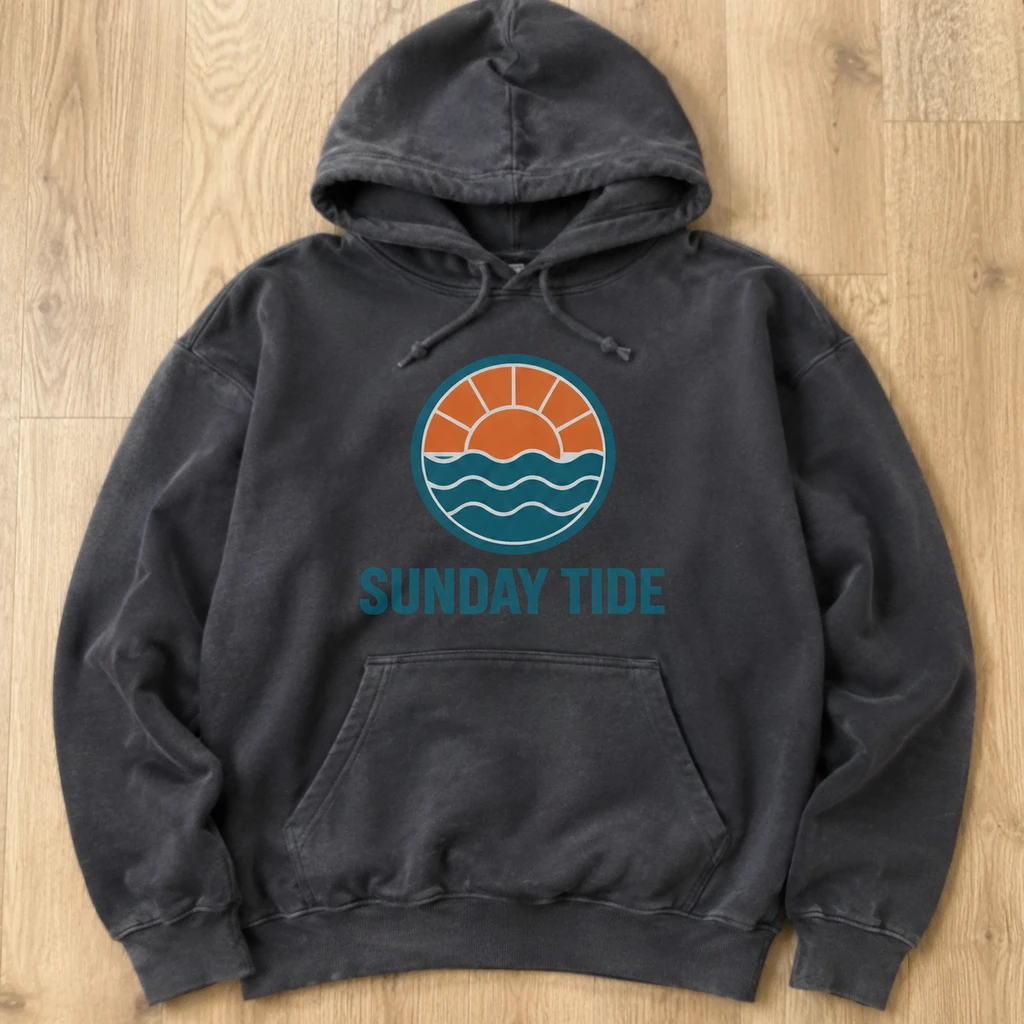
GPT Image 2.5 Flare (AI Mockup Generator) · Generated · View both example records (JSON)
What sellers make next
Show it moving: a product video
Marketing Studio
Switch Output to Video, add your mockup photo as the product (up to 3 photos), and pick a Motion style such as Orbit. You get a 5, 8 or 10 second clip at 480p or 720p, vertical 9:16 or wide 16:9, with no person in it. The print is redrawn in the clip too, so watch the whole thing for changes.
Spin the product from one mockup
360 Product Video Maker
Upload one mockup photo and get a 5-second MP4 at 480P that starts on it and turns the product. The sides your photo doesn’t show, like the back of the shirt, are made up by the AI.
Another shirt color from the same mockup
AI Photo Editor
Add the mockup, type the new color and name the print as something that stays. Up to 4 photos per edit, JPG, PNG or WebP up to 20 MB. Check the print afterward: it is redrawn again.
Prompts you can inspect and adapt
Prompt recipe to adapt
Name the product and what must stay
Put this design on the chest of a plain [color] [product] laid flat on [a surface], photographed from directly above in soft daylight. Print the design exactly as it is in the image: the same shapes, the same colors, the same lettering spelled [YOUR WORDS], the same proportions, and leave out the [white] background around it. Do not redraw, restyle or add anything to the design, and add no other text.Fill in the brackets and type it under Prompt. Spell out any lettering letter by letter. Anything you leave out can change.
Recorded generation prompt
The prompt for the t-shirt
Put this design on the chest of a plain white cotton t-shirt laid flat on a light oak floor, photographed from directly above in soft daylight. Print the design exactly as it is in the image: the same shapes, the same colors, the same lettering spelled SUNDAY TIDE, the same proportions, and leave out the white background around it. The shirt has natural fabric folds. Do not redraw, restyle or add anything to the design, and add no other text.Typed under Prompt with the design as the one image. The tool sends your words as they are and adds nothing.
Recorded generation prompt
The prompt for the hoodie
Put this design on the chest of a plain charcoal hoodie laid flat on a light oak floor, photographed from directly above in soft daylight. Print the design exactly as it is in the image: the same shapes, the same colors, the same lettering spelled SUNDAY TIDE, the same proportions, and leave out the white background around it. The hoodie has natural fabric folds. Do not redraw, restyle or add anything to the design, and add no other text.The same words as the t-shirt, with only the product changed.
Recorded design prompt
How the design in this example was made
A flat graphic for printing on a t-shirt, centered on a plain white background with wide empty margins: a round badge showing a half sun rising over three wavy lines of water, drawn in solid shapes in deep teal and burnt orange, and below it, on one straight line, the words "SUNDAY TIDE" in bold capital letters in deep teal. Clean hard edges, flat colors, no gradients, no shading, no texture. Only the artwork on white: no shirt, no mockup, no other text.Typed in the AI Image Generator with Nano Banana Pro at 1K, square. A stand-in for your own artwork, with short lettering on purpose, so there was something exact to check.
How a mockup is priced
Per run: one image each time you press Generate, priced by the size of the result. The total appears on Generate before you run it.
The tool always runs at the model’s lowest quality setting and makes one image per run. The model is priced by output size, and the size follows your design image’s shape. A set of mockups is one run per product.
Price source: GPT Image 2.5 Flare price sheet · Checked
Before the run starts, the tool checks the price again; if it came out higher than the button showed, it stops and asks you to press Generate again. If the provider it was priced on fails, a backup provider can take the run at its own price, which can be higher. A run that fails is refunded.
What to review before you use the result
| What you see | What to try |
|---|---|
| The lettering is misspelled or changed | Spell the words out in the prompt, as in “the same lettering spelled SUNDAY TIDE”, and keep the lettering short. The tool’s own page warns that fine lettering and thin strokes can drift on fabric. Compare every letter with your original and generate again if one is wrong. |
| The colors are different from my design | Say the colors you need and check the result against your file. In the example, the orange came out brighter and the teal lighter. When a color must be exact, as a brand color must, don’t use the mockup’s colors: put your own file in the printing order. |
| There is a white box around the design | Add “leave out the white background around it” to the prompt, as the example does, and start from a design with a plain background and space around it. |
| The print is soft or small | The design is a small part of the picture, so it has fewer pixels than your file: in the example, the print on the shirt is about 400 pixels wide in a picture 1,024 pixels wide. Use a mockup to show the product, and send the printer your original file. |
| The design bends or warps on the product | Flat and gently curved surfaces are the most faithful. Ask for the product laid flat and seen from above, and try a gentler angle for mugs, bags and hoodies with folds. |
| The mockup isn’t the shape I wanted | The shape follows your design image and there is no size picker. A square image gives a square mockup. Crop the design image to the shape you want before you upload it. |
| The run failed | The tool says why, and a run that fails is refunded. Try again, or try another image or prompt. |
Questions about this workflow
How do I put my logo on a t-shirt mockup with AI?
Open the AI Mockup Generator, upload your logo as one image, and type the product and what must stay, like “a plain white cotton t-shirt laid flat, print the logo exactly as it is”. You get one mockup. Then check it against your original: the tool redraws the logo inside the picture rather than pasting it.
Will my design stay exactly the same?
Not to the pixel. In the example, the spelling, the shapes and the counts held, but the colors shifted and the edges softened. Simple, bold designs hold best. Check every output against your original, and generate again if a detail slipped.
How is this different from template mockup tools?
Template tools paste your exact file onto a fixed photo, which is exact but limited to their scenes. Made draws a new picture of the product with your design in it, so any product and scene you can describe is possible. The trade-off is that the design is redrawn, so you must check it. If you need exact placement, some designers put their original file over a generated scene afterward.
Can I see my design on a hoodie or a mug?
Yes. Run the same design again and change only the product: the example does a charcoal hoodie. A mug is a curved surface, which is harder to keep exact, and this guide did not test one. Check the print against your original.
Can I use the mockup as the print file?
No. The mockup is a presentation image: the design inside it is redrawn and smaller than your file. Send your original vector or high-resolution file to the print service and use the mockup for the listing.
Can it show a person wearing it?
Yes. Describe the person and the place in the prompt. People in the mockups are generated, not real customers.
Do I need to sign in?
Yes, to generate. You can add your image and write your prompt first; if you sign in from Generate, the tool keeps them for you.
Work with Claude and Made
The AI Mockup Generator runs in the tool. With the Made connector in Claude, you can ask for the same mockup: Claude can look up an image editing model in Made’s catalog and quote a mockup from a design you supply, if your client offers a way to upload.
Conversation starter
Ask your assistant
Use Made to put the design in my attached image on the chest of a plain white cotton t-shirt laid flat on a light oak floor, photographed from above. Print the design exactly as it is: the same shapes, colors, lettering and proportions, leaving out the background around it. Do not redraw or add anything to the design. Check the catalog for an image editing model, then show me the price and the prompt before generating one result.If your client doesn’t offer a way to upload, use the AI Mockup Generator with the same image and words.