Retro scenes
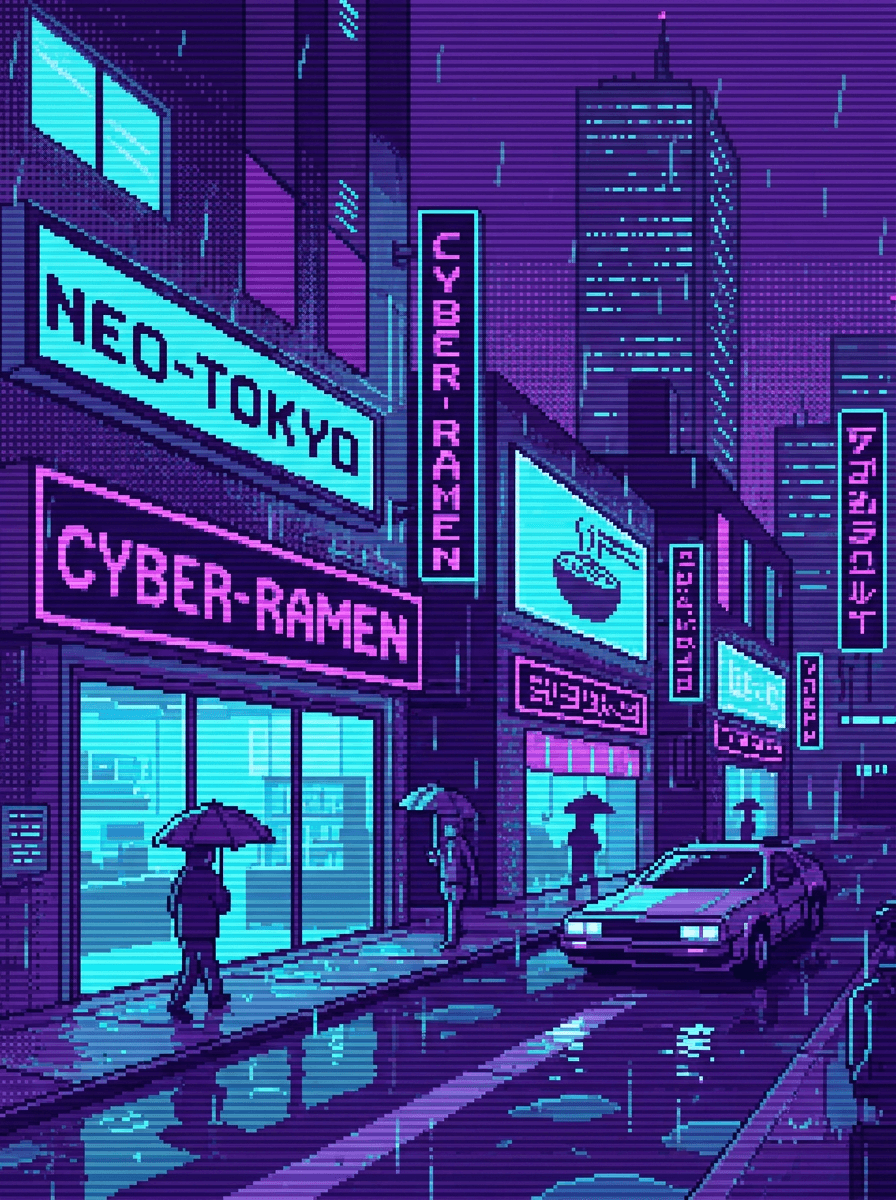
“Generate a 16-bit style pixel art scene: rainy neon city street at night, glowing storefronts, purple and cyan palette, chunky visible pixels, puddle reflections.”
Use this promptDescribe a character, scene, or object and Made renders it in a retro pixel-art style — chunky pixels, limited palettes, 8-bit and 16-bit inspired looks — as a PNG.
Runs in the tool. You sign in to run it, see the price before you start, and failed runs are refunded.
Name the character, scene, or object, and the mood — “cozy,” “ominous,” “sunlit” — you want the pixels to carry.
Say “8-bit style,” “16-bit style,” or “isometric pixel art,” and specify a limited palette; generic retro descriptions work better than naming existing games.
Each run is a new render. Adjust the palette, pixel chunkiness, or framing between runs to steer the look.
Save the result. For production game sprites, use the image as a reference and redraw it on a true pixel grid in a pixel editor.
Real results from Made. Use a prompt to open it in Pixel Art Generator, then press Generate.
“Generate a 16-bit style pixel art scene: rainy neon city street at night, glowing storefronts, purple and cyan palette, chunky visible pixels, puddle reflections.”
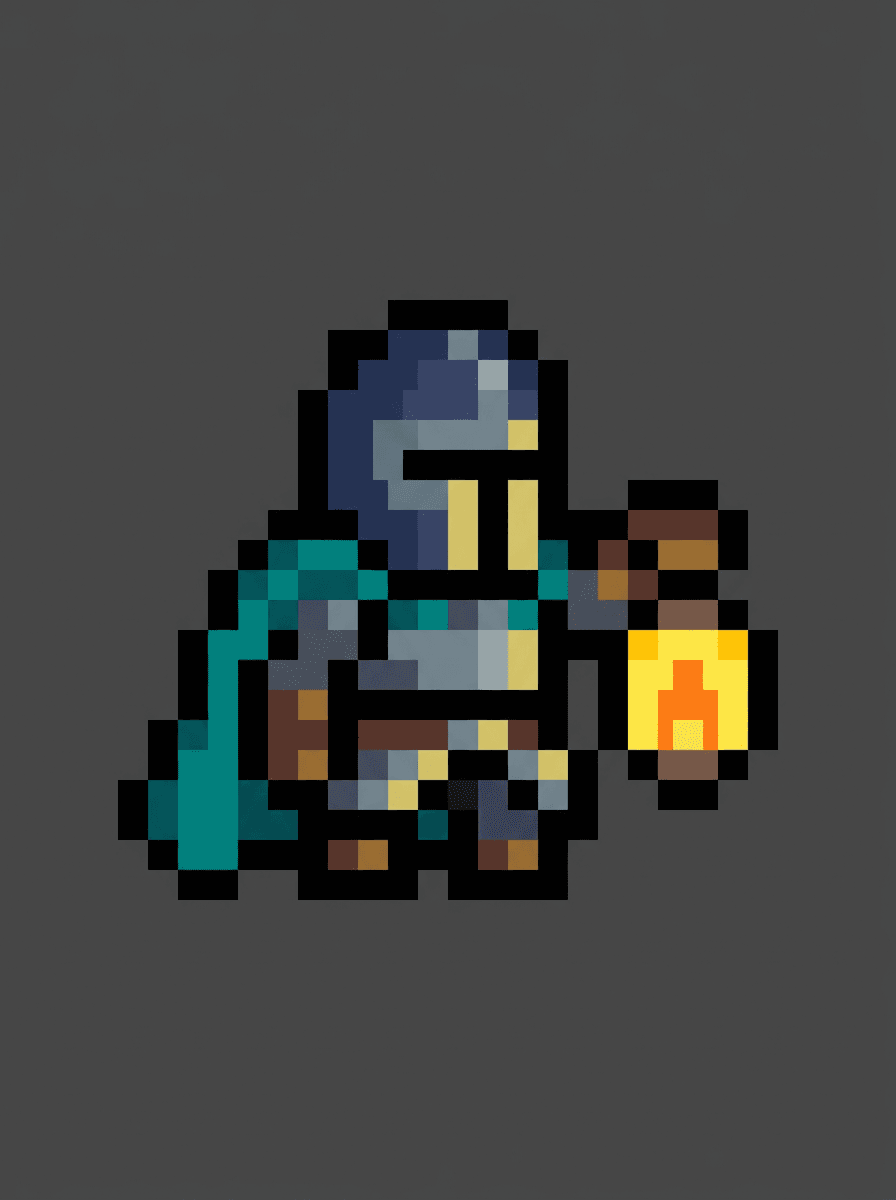
Use this prompt“Create a pixel art character: a small knight with a teal cape holding a lantern, single large pose, chunky 16-bit styling, limited palette, plain dark background.”
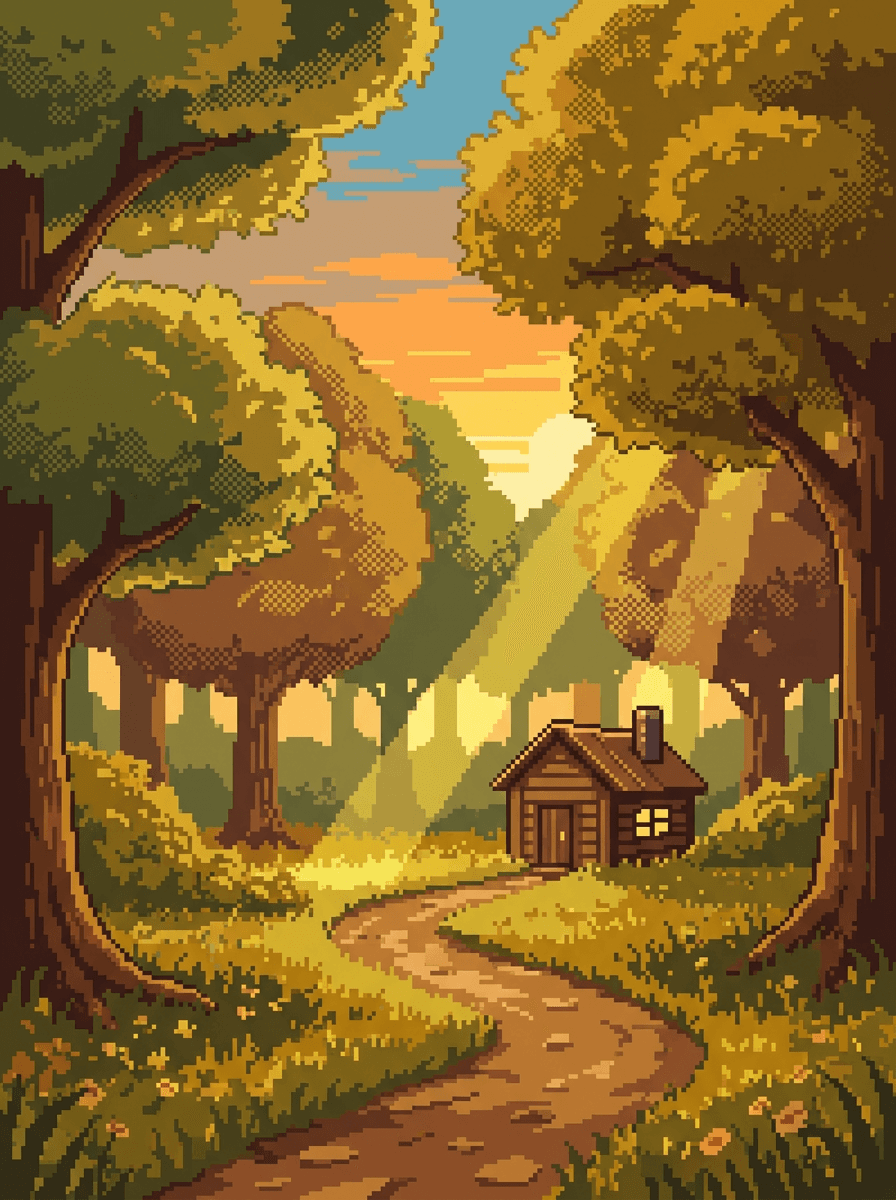
Use this prompt“Make a pixel art landscape: sunlit forest clearing with layered tree canopies, dithered shading, a winding dirt path and tiny cabin, warm green and gold palette.”
Use this promptChecked against the running tool on 2026-10-20.
You describe the subject and the retro treatment — 8-bit, 16-bit, isometric — and Made sends the description to GPT Image 2.5 Flare, which renders the scene in pixel-art style and returns a PNG at 1K resolution.
No. The output is a single PNG image drawn in a pixel-art style — it is not a sprite sheet, tile set, or image with exact pixel-grid guarantees. Individual “pixels” in the render may vary slightly in size, so treat it as artwork or reference rather than engine-ready assets.
As concept art, mockups, and reference, yes — it is fast for exploring characters and environments. For production sprites, redraw the concept on a true pixel grid in a pixel editor so the assets scale cleanly and animate consistently.
Describe generic retro aesthetics instead — “8-bit limited palette,” “16-bit era RPG town,” “chunky pixels with dithered shading.” Generic style language produces strong results, and it avoids leaning on any specific game’s protected art.
The default output is a 1K PNG, with selectable aspect ratios: 1:1 suits characters and avatars, 16:9 suits scenes and banners, and 9:16 suits phone wallpapers. The ratio is about framing — the pixel-art look itself comes from your description.
Not on this page — this workflow generates from text only. To restyle an existing photo, upload it to the AI Photo Editor and ask for a pixel-art treatment, or try Photo to Cartoon for an illustrated conversion.
Constrain the render in the prompt: name a small palette (“six-color palette”), ask for “chunky, uniform pixels,” and keep the scene simple. Because each generation is a new render, expect to run two or three variations and pick the one with the most consistent pixel treatment.
 Core
Core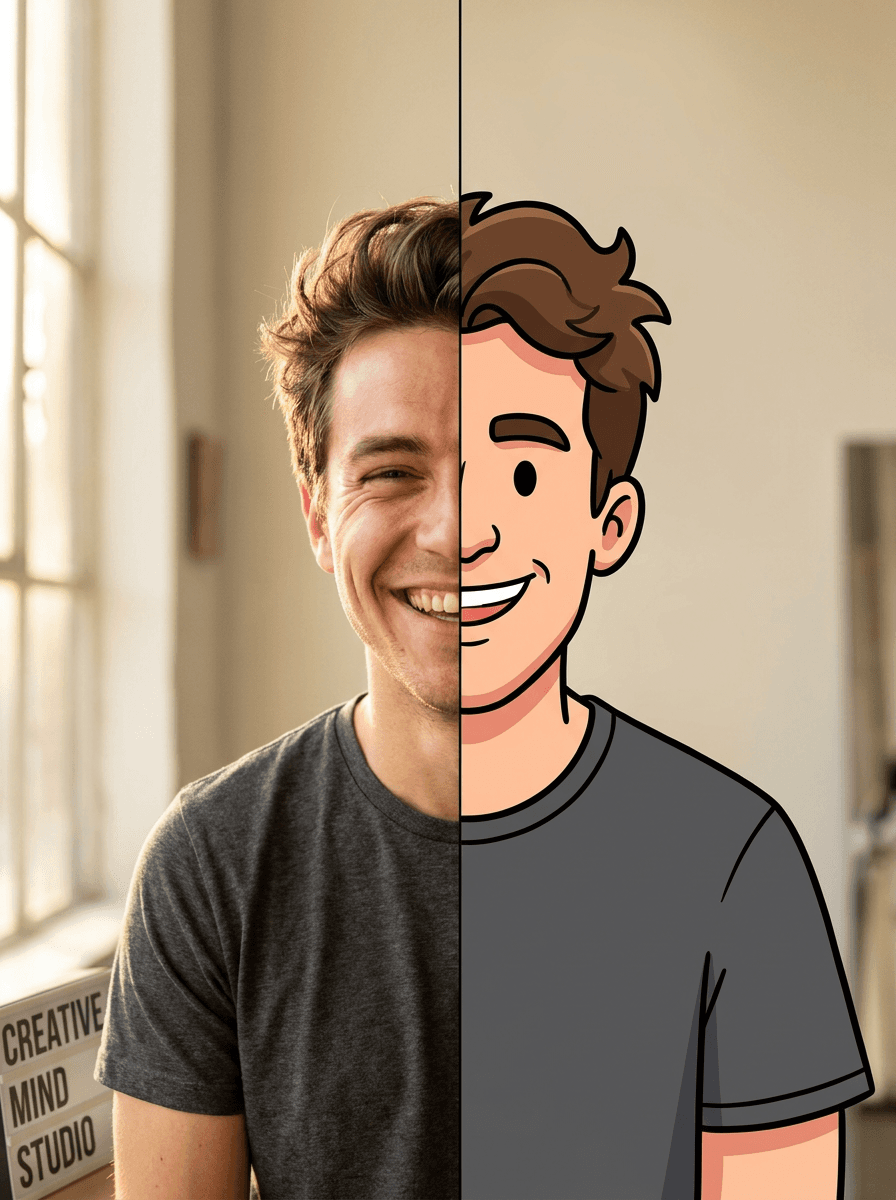
See what each one makes, then open it in Made.