Tech reviews
“Generate a 16:9 thumbnail: surprised presenter holding a sleek gadget, saturated blue-to-magenta gradient burst, huge yellow block letters reading Big Upgrade with black outline.”
Describe the video and the reaction you want the cover to trigger, and Made generates a bold 16:9 thumbnail as a PNG — strong focal point, saturated colors, and optional title text.
Tech reviews“Generate a 16:9 thumbnail: surprised presenter holding a sleek gadget, saturated blue-to-magenta gradient burst, huge yellow block letters reading Big Upgrade with black outline.”
Say what the viewer should feel in half a second — the subject, the expression or action, and the payoff the video promises.
Keep rendered text to a few punchy words and spell them exactly. Proofread the result — thumbnail text is read at a glance and typos are conspicuous.
Request high contrast, a single focal point, and bold outlined text; mention that it must stay readable at small sizes.
Each run is a new render. Generate a few options, shrink them down to feed size to judge them, and download the winner as a PNG.
Real results from Made. Use a prompt to load it into the studio above, then add your own photo.
“Generate a 16:9 thumbnail: surprised presenter holding a sleek gadget, saturated blue-to-magenta gradient burst, huge yellow block letters reading Big Upgrade with black outline.”

“Create a 16:9 cooking thumbnail: overhead shot of a sizzling cast-iron pan of golden dumplings, steam rising, bold white text reading 10-Minute Dumplings with red outline.”

“Make a 16:9 travel vlog thumbnail: hiker with arms raised on a cliff above a turquoise coastline at golden hour, bold white capitals reading I Found Paradise across the lower third.”
Checked against the running tool on 2026-09-03.
You describe the video’s hook — the subject, the moment, and any title text — and Made sends the description to the Nano Banana 2 image model, which renders a 16:9 cover image and returns it as a PNG at 1K resolution. Generate a few takes and pick the one that reads best small.
Not on this page — this workflow generates entirely from text, so the people in the render are generated, not you. To build a thumbnail from your own photo — cut yourself out, boost the colors, add text and a background — upload the photo to the AI Photo Editor instead.
Current models render short text well, but spelling is not guaranteed on every run. Keep titles to a few words, put the exact wording in your prompt, and proofread before publishing — regenerate or rephrase if a letter drifts.
The output is a 16:9 PNG at 1K resolution, which matches the shape video platforms expect. If your platform asks for an exact pixel size such as 1280 × 720, run the result through Image Resizer; PNG uploads are broadly accepted.
Design for the glance: one clear subject with a strong expression or action, a high-contrast background that separates from the platform’s white or dark UI, and no more than about four words of text. Say “readable at small sizes” in the prompt — it pushes the model toward bolder, simpler compositions.
Yes, by treating the style as a reusable template: fix the palette, text treatment, and layout in one description and change only the subject and title per video. Each generation is a new render, so expect sibling-level consistency rather than identical frames.
Yes. Switch the aspect ratio to 9:16 for vertical formats, and keep the focal point centered since short-form UIs overlay buttons and captions along the edges. The same prompt principles apply — one subject, high contrast, minimal text.
 Core
Core
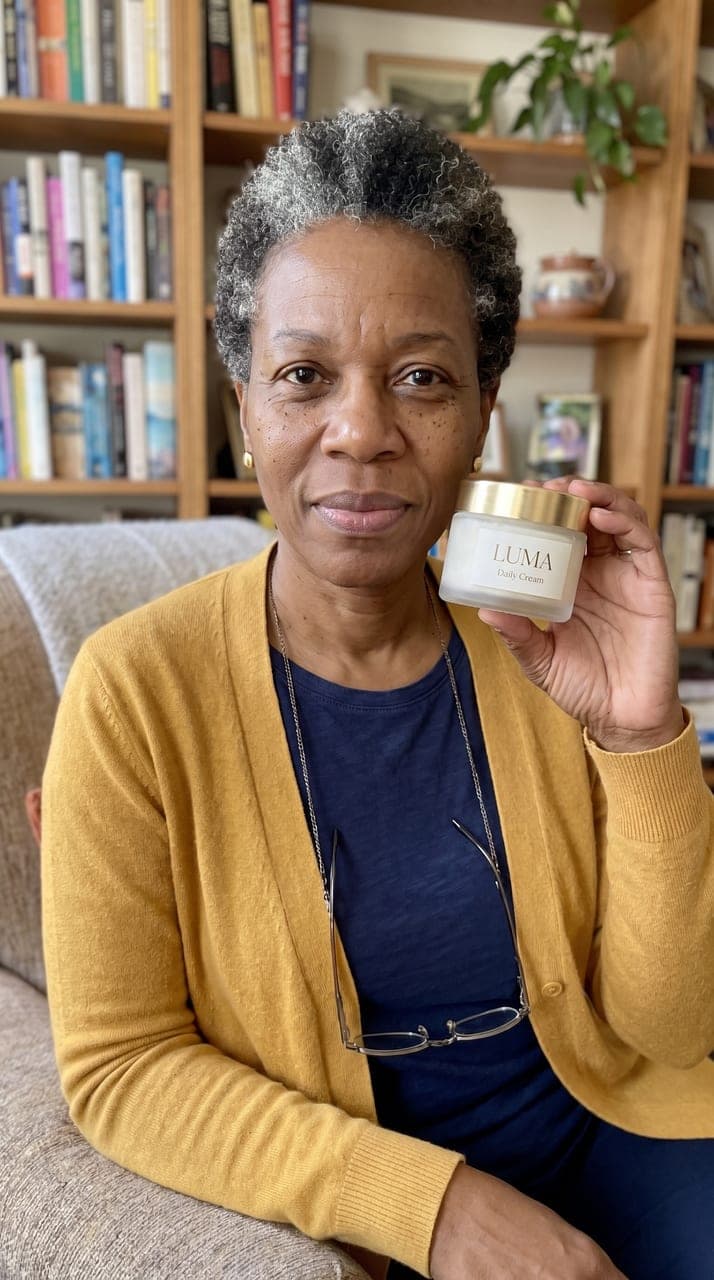
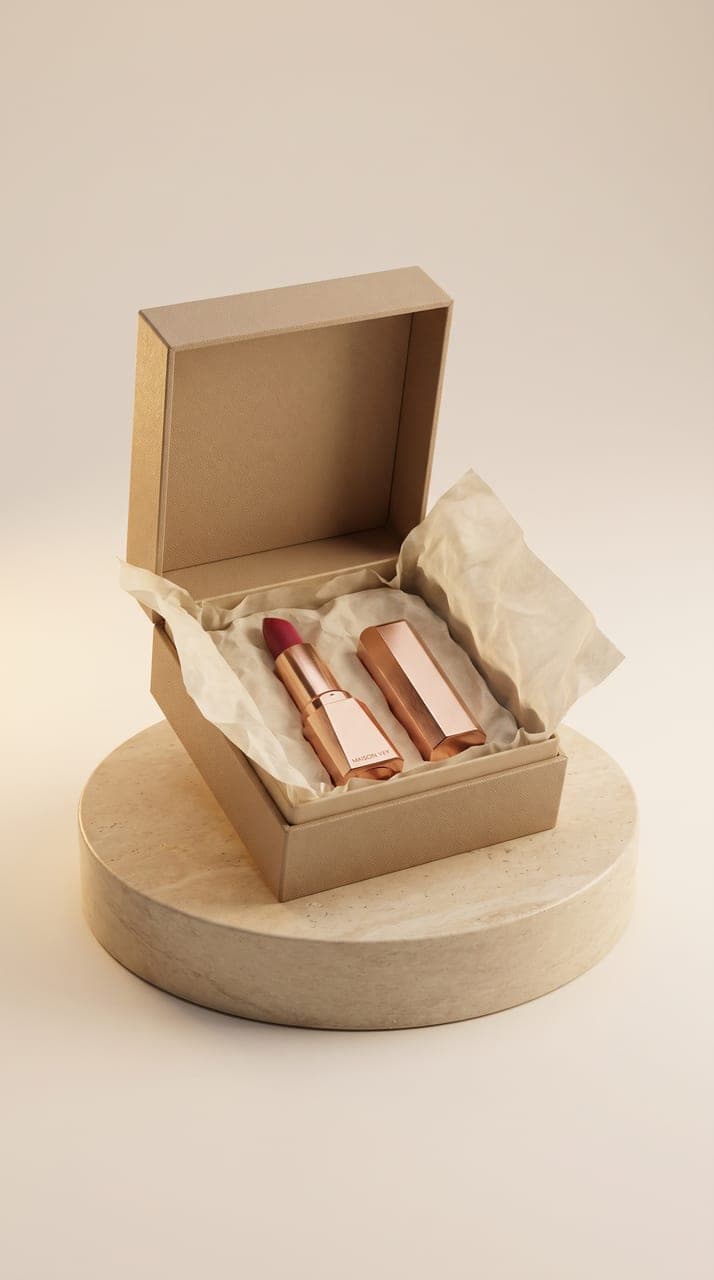
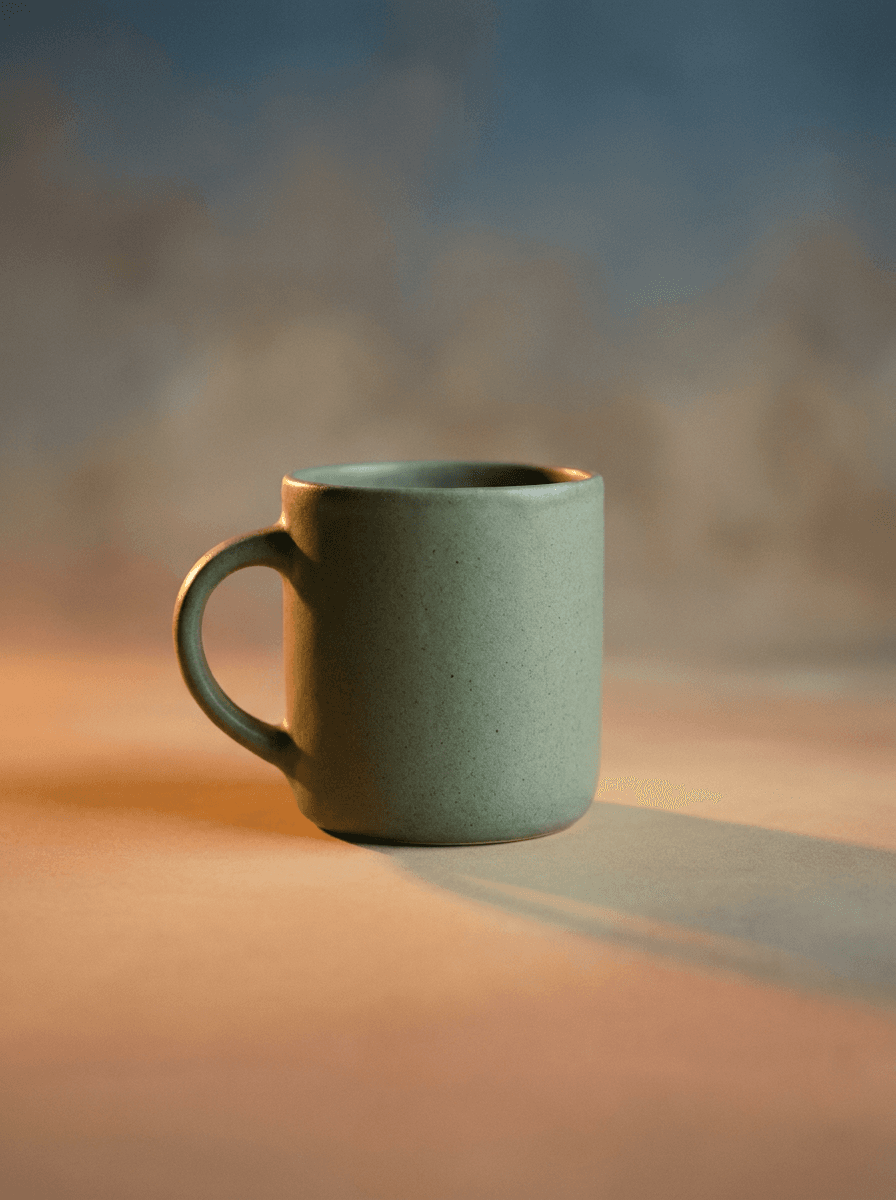
See what each one makes, then open it in Made.